Low lights, fast hugs, twinkling LEDs—December is a minefield for smartphone cameras. The good news: your iPhone hides a one‑tap fix that rescues more shots than you’d think.
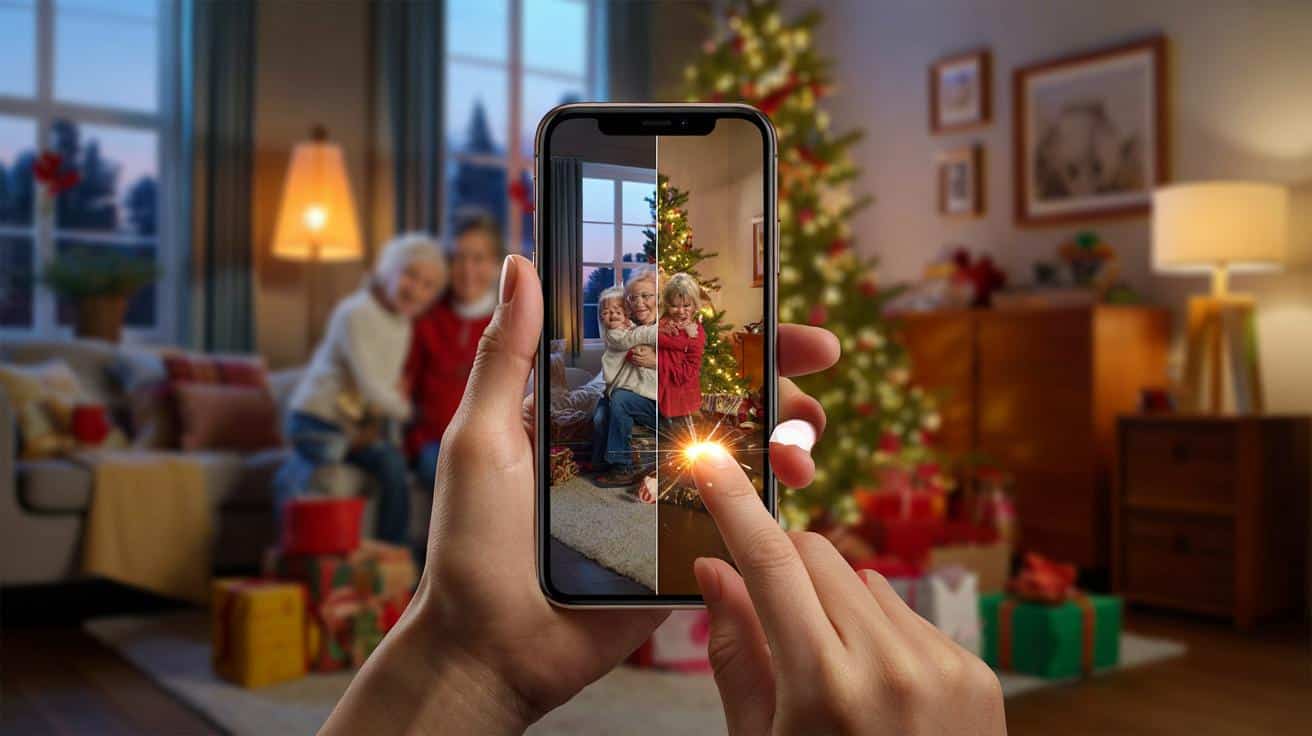
The living room was amber and soft, all pine and cinnamon. The kids ricocheted off wrapping paper while grandma asked for “just one more” under the tree, the kind of moment you want to bottle. I snapped a dozen frames and my heart sank—faces too dark, fairy lights blown to chalk, motion blur in every grin.
Then something small, almost silly. A single button. And the room came back.
The real reasons your Christmas iPhone photos flop
Holiday lighting makes sensors sweat. Warm bulbs, tiny LEDs, candles and a TV glow pull white balance to orange while the phone chases exposure it can’t quite hold. Faces go muddy, shadows swallow details, tree lights blow out. Add movement and the camera leans on aggressive noise reduction that smooths skin into plastic.
We’ve all been there, staring at a sweet moment that looks like it was shot through a potato. The iPhone’s computational magic—Smart HDR, Deep Fusion, all the buzzwords—was built for mixed light, yet Christmas stacks every hard condition at once. So photos land flat: low contrast, noisy shadows, odd colors that don’t feel like the room you remember.
Think of it like this: your iPhone tries to capture multiple exposures, fuse them, and guess the “true” color temperature while people move and lights flicker at different frequencies. It’s juggling. Live Photos grab a short burst, but the chosen frame may not be the sharpest or best lit. That’s why the default result often sits in the middle—technically safe, emotionally off.
The one‑tap iPhone trick that saves them
Open Photos, pick the shot you thought you’d toss, tap Edit, then tap the little magic wand. That single press rebalances exposure, tones down highlights, lifts faces from the shadows, and corrects the holiday orange without going icy. It’s fast, quiet, and weirdly effective on rooms lit by trees and lamps. The wand is the fastest, most underrated fix your holiday camera already has.
If the result feels a hair too punchy, nudge. Tap Brilliance down a notch to calm halos, or slide Highlights back 10–20 points to bring detail back to fairy lights. If faces still look murky, raise Shadows slightly until eyes wake up. *Small moves look more natural than big swings.* Save, and you’ll often feel the room again—warm, but not jaundiced.
Let’s be honest: nobody fine‑tunes every holiday shot one by one.
Tap the wand, then rescue only the frames that truly deserve a second life.
- Too orange? After the wand, add a touch of Warmth down or try the “Vivid Warm” filter at low strength.
- Blurred hug? If it’s a Live Photo, choose a sharper Key Photo from the timeline.
- Tree lights blown out? Drop Highlights and slightly raise Contrast.
- Faces waxy? Ease off Noise Reduction by lowering Brilliance and sharpening a tick.
- Batch fix: Copy Edits from one saved photo and paste to a set of similar shots.
Small extras that feel like magic
One tap can save a photo, and a couple of tiny habits will save a whole evening. Use Live Photos for chaos; later, hit Edit and scrub the frames to pick a crisp Key Photo where eyes are open and hands aren’t a ghost. If the tree shimmer looks messy, switch a Live Photo to Long Exposure for dreamy light trails—suddenly the “mistake” becomes a postcard. Keep the phone steadier than you think for a beat after pressing the shutter; the camera still gathers data. And when the room runs tungsten, lightly dim the brightest lamp rather than the whole scene. Small control of light beats big edits nine times out of ten.
The wand does heavy lifting, but taste is yours. Some families love cozy amber; some want neutral skin and punchy greens. Try the wand, then pick your lane in two moves: Shadows for faces, Highlights for sparkle. If you shoot bursts when kids move, pick the best smile on the couch and toss the rest without guilt. Live Photos can rescue a sharp frame you thought you’d lost.
There’s an emotional layer here, too. On a messy, glittery night, the “perfect” image isn’t perfect at all—it’s the one that lets you feel the room again. The wand isn’t a cheat; it’s a memory un-muddler. Soyons honnêtes : personne ne fait vraiment ça tous les jours.
Holiday photos are tiny time machines. The tree won’t be this year’s tree again, the kid won’t mispronounce “reindeer” forever, and the dog won’t sleep under the wrapping in just that shape twice. The magic wand lifts the fog fast so those details breathe. Share the before-and-after with the person in the picture and you’ll see it on their face—the sudden recognition, the “yes, that’s how it looked.” Try it on a handful tonight and see which ones move you. The button takes a second. The feeling lasts.
| Point clé | Détail | Intérêt pour le lecteur |
|---|---|---|
| One‑tap “magic wand” | Photos > Edit > tap the wand for automatic exposure, color, and tone fixes | Instant rescue for dark, orange, or flat Christmas shots |
| Live Photo recovery | Edit a Live Photo and choose a sharper Key Photo; try Long Exposure for lights | Salvage blur, turn chaos into creative glow |
| Smart micro‑tweaks | Lower Highlights for tree lights, raise Shadows for faces, adjust Brilliance gently | Natural look without heavy editing or apps |
FAQ :
- Where is the “magic wand” on iPhone?Open your photo in Photos, tap Edit, then tap the wand icon at the top. It applies Auto Enhance in one touch.
- Will this fix motion blur from moving kids?It can’t un-blur a fully smeared face, but if it’s a Live Photo you can scrub and pick a sharper Key Photo that often saves the moment.
- Why do my photos look too orange at Christmas?Warm bulbs and mixed LED colors confuse white balance. The wand neutralizes most of it; you can trim Warmth a little after.
- Is there a quick way to fix a whole batch?Yes: Edit one, tap the three dots, Copy Edits, select similar photos, then Paste Edits. It’s a huge time saver for a set shot in the same room.
- Do I need a new iPhone for this to work?No. Any recent iPhone with the Photos app’s Edit tools has Auto Enhance and Live Photo options, and they work great on older shots too.